
On Thursday 20 February, we looked at the latest version of LibreOffice – This is “a private, free and open source office suite – the successor project to OpenOffice. It’s compatible with Microsoft Office/365 files (.doc, .docx, .xls, .xlsx, .ppt, .pptx) and is backed by a non-profit organisation“. Its support for 110 different languages is unparalleled. Many government institutions use it in preference to Microsoft Office, both for this reason and because it’s free and doesn’t try to sell you anything!
It has versions for Windows, MacOs, and Linux and there are even experimental versions for Android. You can download it from: https://www.libreoffice.org/download/download-libreoffice/ The latest version is 25.2 Until recently they numbered versions sequentially and having reached 7.6.7 in June 2024 switched to a new, time-based release numbering system: https://wiki.documentfoundation.org/ReleasePlan This system “does not wait for features or bug fixes, but is based (as purely as possible) on time. This enforces discipline in introducing fixes, provides predictability, and allows for more regular releases”
When you start LibreOffice you are presented with a program launcher which also displays recent documents as thumbnails and the option to use templates.
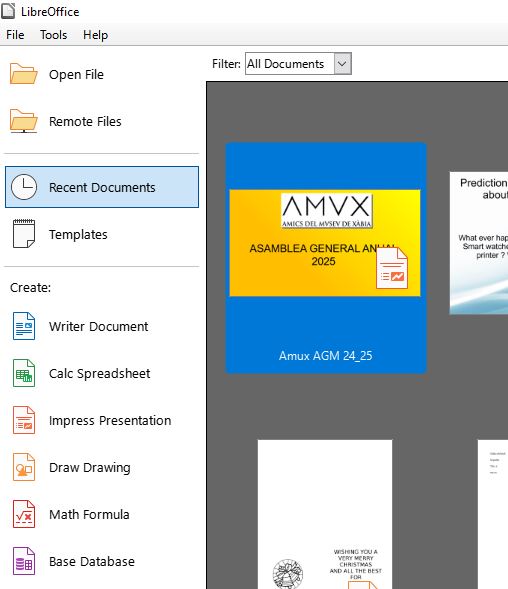
It has all the major components of an office suite: Wordprocessor – Writer;
Spreadsheet – Calc,
Presentations – Impress,
Drawings – Draw,
Database – Base
and Mathematics formula – Math
It’s worth checking the language settings to ensure you have the “right” kind of English! From the menu at the top left, click on Tools, Options / Languages and Locales
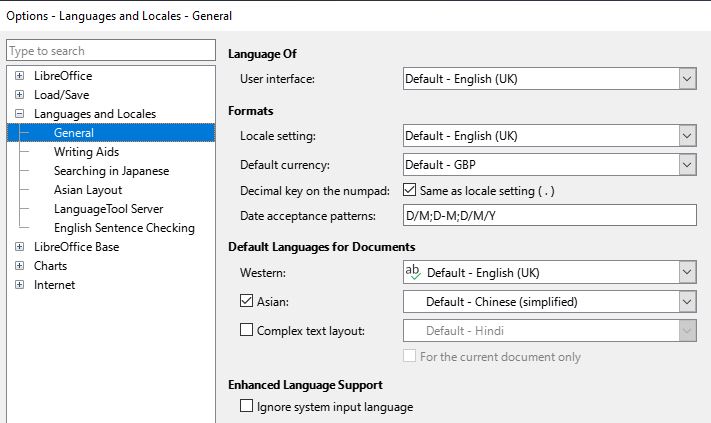
In this screen-shot, the language is UK English and the date format is Day/Month/Year. (The US date format is Month/Day/Year which often causes confusion)The default currency is UK Pounds, but this can be changed to English Euros by choosing Ireland from the dropdown menu.
It’s also worth checking English Sentence Checking to customise grammar checking.
You may be migrating from Microsoft Office and want to use familiar menus and toolbars. This can be arranged!
From the program launcher click on:
Create
Writer Document
Then from the Menu bar at the top, select
View
User Interface
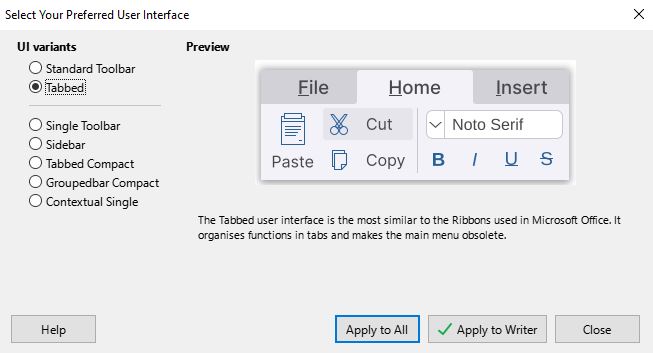
Here you can choose between several layouts. The one most similar to Microsoft Office is the Tabbed variation. Others options include layouts for small screens. You can apply your chosen style of user interface just to Writer, or to all of LibreOffice.
Although LibreOffice happily opens and edits MS Office files, by default it saves them in Open Document format (ODF) https://www.libreoffice.org/discover/what-is-opendocument/ . However, you may be working with other people who are used to Microsoft Office formats. While this is an option when you save a file in LibreOffice, you can make MS Office the default file format. From the Program launcher:

Tools
Options
Load/Save
General
Choose the document type from the dropdown list, and then select the Office file format from the Always Save As dropdown.
Because LibreOffice is community-supported, there is a huge number of Templates and Extensions online. These have been created by users and are free for anyone to use, see: https://www.libreofficetemplates.net and https://extensions.libreoffice.org/en/ If you have a specialist interest, there is probably someone who has created a template or extension for it!
Peter demonstrated some spreadsheet tricks, including filling a range by example. e.g
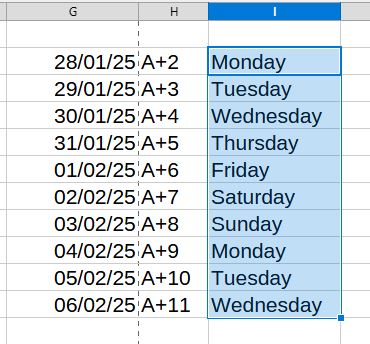
Fill the value into a cell, (such as a date) then drag the cell corner down through the other cells in the column or row. This trick works will all types of data including formulae.
A member commented that he was unable to print cell borders in Calc consistently. After the talk, Peter found the solution:
Format > Page Style > Sheet – Print-Grid.
If there’s a problem or a challenge – there’s bound to be a solution!
Chris Betterton-Jones – Knowledge junkie