
On Thursday, July 3 we discussed Microsoft’s “Extended Security Program” which gives Windows 10 users security updates after the support cut-off date in October 2025.
Microsoft is introducing free enrollment options, allowing Windows 10 users to remain supported for one more year without paying Microsoft a single dollar. Now, you can get 12 more months of security updates using one of the following three options:
- Use the Windows Backup app to sync your settings to the cloud
- Pay 1,000 Microsoft Rewards points
- Pay $30 (local prices may vary)
This is the first time that Microsoft has made the Extended Security Update program available for consumers. Previously, this program was reserved for commercial customers only. ” https://www.neowin.net/news/microsoft-lets-you-have-extra-year-of-windows-10-updates-for-free/
We wondered what the “Rewards points ” were. These turn out to be “ a loyalty program offered by Microsoft that rewards users for engaging with their products and services. Users earn points by performing various actions, like searching on Bing, shopping at the Microsoft Store, playing Xbox games, and completing daily qizzes etc. These points can then be redeemed for various rewards, including gift cards, games, consoles, etc. ” (From Gemini AI). So if you prefer Google search, or to remain anonymous online by searching with DuckDuck Go, you’ll not be part of this programme. People who use a lot of Microsoft services such as the Edge browser and Office 365 would quickly clock up the required number of points. Tom signed up for them some time ago and has accumulated over 3000 points mainly by using Microsoft’s Edge browser on desktop, laptop, tablet and phone and searching with Bing.
The Rewards points system is complicated see: https://www.pointhacks.com.au/microsoft-rewards/ The Ultimate Guide to Microsoft Rewards and there are three membership “tiers” or levels. For example:
Earning points via Bing search:
- Via desktop: Earn three points per search.
- Capped at 30 points per day (Level 1) or 90 points per day (Level 2/2+).
- Via mobile: Only for Level 2/2+, earn three points per search.
- Limited to 60 points per day.
- General bonus: For each day you search with Bing in Microsoft Edge, get a bonus on top.
- That’s three points per day for Level 1, or 12 points per day for Level 2/2+.
Note that the earning options via desktop and mobile are cumulative each day. This means a Level 2 member could earn up to 150 points from search queries each day across their devices.
No-one wanted to pay Microsoft any money, so we looked at the Windows Backup option. To use this you need to have a Microsoft account and synchronise it with Microsoft. (From Windows Settings, look for Backup – one option is “Backup and sync your settings“) This is what it implies.
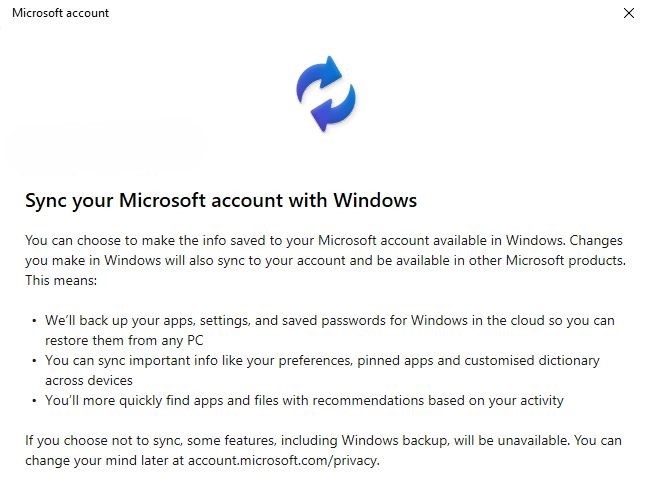
Note: In using your Microsoft Account on a new device you are obliged to create a PIN number. Tom pointed out that this is stored in the TPM of the device.
The Backup option seemed to be the simplest one. Enrollment on the Extended security program is described in several online articles, but will not be rolled out to the general public until August 2025
We then looked at the hardware requirements to upgrade to Windows 11, and what a TPM is. Here are the requirements: https://www.microsoft.com/en-us/windows/windows-11-specifications . These could be a bit confusing for the average non-techy user!
This article describes a TPM and how it works in layman’s language: https://www.pcmag.com/explainers/what-is-a-tpm-and-why-do-i-need-one-for-windows-11
Chris’s laptop seemed to comply with all the requirements, including having a TPM, except that the processor is not on Microsoft’s approved list: The Intel Celeron 3855U processor is technically compatible with Windows 11, but it’s not officially supported by Microsoft. While it meets the minimum CPU requirements, it falls outside the officially supported processors for Windows 11. This means you might encounter issues with updates or compatibility, but it’s possible to install and run Windows 11 on this processor. (From Gemini)
Unfortunately, Windows 10 does not automatically let you know if your PC is compatible with Windows 11 or not. This what Chris sees on her laptop’s Windows Update page.

You have to click on the “Check Hardware Requirements” link to find, download and install WindowsPCHealthCheckSetup . This is tucked away right at the bottom of a long and wordy web page.
The app confirmed that Chris’s laptop was not compatible. (though the message to “Get Ready for Windows 11” still remains!) The whole process seemed unnecessarily convoluted, complicated and badly designed.
This article describes a general discontent among Windows users with what it has morphed into: https://www.windowscentral.com/software-apps/windows-11/windows-11-10-lost-400-million-users-3-years
We discussed the implications of continuing to use Windows 10 without security updates, but just relying on third party apps like Malware bytes. Chris pointed out that most security incidents are the result of phishing or scams which would not have been prevented by these updates. It would perhaps be like “leaving the house doors and windows open”. On the other hand, it could be no more dangerous than “driving a car in broad daylight without the headlights on”
We also looked once more at installing Windows 11 on PCs which are technically incompatible. This is possible, and to date such installations receive regular Windows 11 updates, but they can’t handle the big annual update. There’s also the likelihood of more problems arising in the future.
Perhaps it’s time to jump ship and use Linux or Chrome OS? ..or buy a new PC with Windows 11 on it. Or switch to a Mac!
Chris Betterton-Jones – Knowledge junkie