
On Thursday, August 21 we discussed whether AI could be used to manage photographs and documents on a PC.
Locally installed AI tools (not in the Cloud)
The problem with AI tools such as Microsoft’s CoPilot, Google’s Gemini, ChatGPT, and DeepSeek is that they manage your data in the cloud, so privacy is a big issue.
However, several AI tools can be installed locally, meaning they can be downloaded and run directly on your PC without the need to share data online.. 5 Local AI Tools to Interact With PDF and Documents https://itsfoss.com/local-ai-docs-tools However, all these need a powerful computer with lots of RAM and a fast processor. Their main function is to enable users to interact with the tool in a conversational manner, similar to how one would chat with ChatGPT online.
Online AI tools
If you are not too worried about privacy, there are sophisticated online tools for AI document management. e.g. CoralAI: https://www.getcoralai.com “The AI Assistant For Your Documents: Use AI to summarize, query, and transcribe your files and meetings in seconds. Generate mind maps, presentations, and content from your files. Get a citation with every response.” Users have to upload documents to their server to use the tools. This, like most others, is oriented towards businesses.
Peter pointed out that you have to be careful to know who produces this type of niche software, and whether it was legitimate and trustworthy, since there were so many scams about.
File search and folder organisation – AI vs Manual
Apple Mac users have the benefit of being able to download Sparkle – https://makeitsparkle.co/#features . This does just what Chris needs, AI-powered folder and file organisation.
“No more wasting time sorting files manually. Just save your files, and Sparkle takes care of the rest.” It runs locally on the Mac, using only file names on their server to organise files. These are deleted after 30 days.
❌ Manually creating folders
❌ Wasting time organizing screenshots
❌ Digging through cluttered folders
❌ Cloud files scattered
❌ Messy work and personal files
❌ Forgetting where important files are saved
Unfortunately, it only works with an Apple Mac – not Windows !
Chris asked Gemini if there was an equivalent for Windows: The answer was no, but it suggested the open source program Docfetcher https://docfetcher.sourceforge.io/en/index.html This doesn’t use AI but indexes files and their contents and supports complex queries: “In addition to basic constructs like OR, AND and NOT DocFetcher also supports, among other things: Wildcards, phrase search, fuzzy search (“find words that are similar to…”), proximity search (“these two words should be at most 10 words away from each other”), boosting (“increase the score of documents containing…”)
Peter wondered why Chris didn’t just use Windows File Explorer – since it’s a powerful tool. This video provides some tips on how to search for files in Windows File Explorer, and how to save searches: Advanced Search Techniques in Windows 11
Published on 19 Apr 2025 • 1,864 views Microsoft Office & Canvas Videos by Debra Sayble
https://youtu.be/j96tzx5DDBo?si=_YBot733AnkdapWX
Peter pointed out that you can also search inside files using Windows File Explorer. (No AI required!) This is something which Chris didn’t know – which is hardly surprising since the setting is not that easy to find. Here is a screenshot from Windows 11
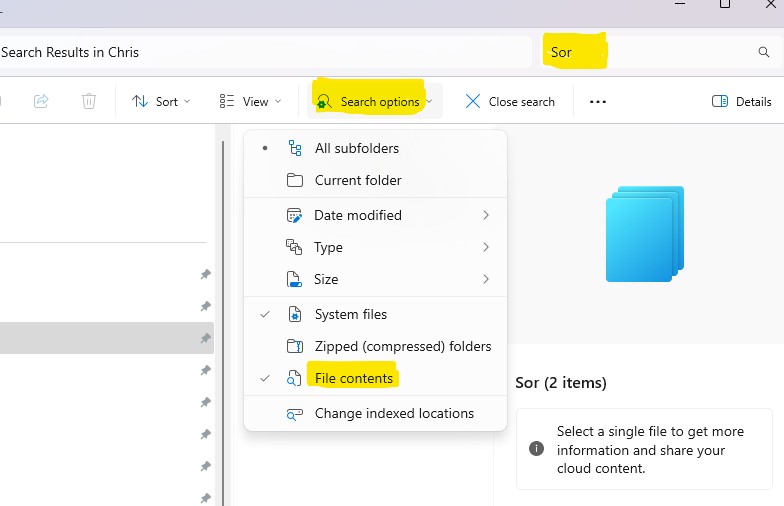
1. Open File Explorer
2. Start typing in the search box – in this case, Chris has started typing “Sorolla”
3. THEN and not before, the Search Options menu item appears
4. Click on this and select File contents
5. Windows Explorer will now search inside text files in the selected folders for the word in the search box. It also seemed to search for the text inside images.
If Windows Explorer can do that, can Microsoft Co-Pilot do the file search for you? Chris reported that Microsoft CoPilot will work with files in OneDrive, but it only seems to look for filenames.
HOWEVER (stop press) on pursuing this topic further after the presentation, Chris found this recent article explaining how to get CoPilot to search inside files on your Windows 11/10 PC and in Onedrive
Enable/Disable Copilot File Search on Windows 11 : https://techpress.net/enable-disable-copilot-file-search-on-windows-11/
This feature is probably only available if you pay to subscribe to Microsoft 365. It is not enabled by default, so you need to tweak security settings and permit CoPilot firstly, to search for your files and secondly, to read their contents.
“You can search for your PDFs, Office documents, images, and even files synced or cached by OneDrive. Copilot can also read files and provide information about their content. For example, you can ask Copilot to search for files that contain the word “password,” or search for a list of files with a particular file extension“
Can Google’s Gemini search inside files too? – Yes, but you need to pay for Google One A1 premium to use it.
A member described using AI to read images of antique hand-written documents, but only through the link provided by Ancestry.com – feeling that it would be more secure.
Using AI to improve old photos.
Chris had done some colourising of old photos back in 2021 with an AI called DeepNostalgia through Heritage.com – with mixed results. Animations were the flavour of the year and were ghoulish; however, photo repair and colourisation gave generally good results. Here’s the web album from that presentation. https://photos.app.goo.gl/X68KyCayA4QwTpVm9
These days, there are many similar online services which claim to restore old photos using AI. Here’s what Gemini recommended:
Several excellent free AI tools can effectively restore old, damaged photos. PicWish AI Photo Editor, VanceAI Photo Restorer, and Picsart’s AI photo restoration tool are highly recommended for their user-friendly interfaces and powerful restoration capabilities. These tools can remove scratches, enhance details, colourize black and white photos, and upscale images to improve resolution.
Here’s a more detailed look at some of the best options:
Chris tried PicWish : https://picwish.com/photo-enhancer and Vance AI https://vanceai.com
The results were not good. Both apps introduced noticeable artefacts and altered the faces excessively,


People interested in genealogy know how AI changes faces and fall back on the manual image editing of portraits.
Chris noted that AI has been trained on data from the Internet. This tends to reflect the biases of straight, white males (and probably politically left-wing ones, since academic institutions that produce a lot of Internet information tend to be liberal) https://www.universiteitleiden.nl/en/news/2025/02/ai-is-currently-a-straight-white-man-and-that-is-a-big-problem. Perhaps this applies to the AI used in photo restoration too, since in both cases a Chinese face has been Westernised!
Chris Betterton-Jones – Knowledge Junkie