
On Thursday 4th September we held a Mint workshop for 5 relatively new users and other interested members. Below is a summary of the points covered.
Although Linux Mint is different from any other Operating System, it is fairly intuitive to use so it is worthwhile familiarising yourself with the options.
You can find everything from the Start Menu, directly or by navigating through the Program Categories. You can also search by name.
Recommended Initial Setup
Configure Timeshift. This takes a scheduled snapshot of Linux which will be very useful if Mint doesn’t start properly in the future. You will be able to restore the system using a bootable USB, rather than having to do a clean reinstall and losing your data. I suggest storing up to two snapshots on the local drive once per week.
A new computer is a good time to set up your data backup. The Mint Backup program takes a snapshot of your data so it is a simple solution if you have less than a few hundred files. For fast backup of many thousands of files you will need a backup program like Freefilesync or Backintime.
System Settings
You can configure pretty much everything from System Settings
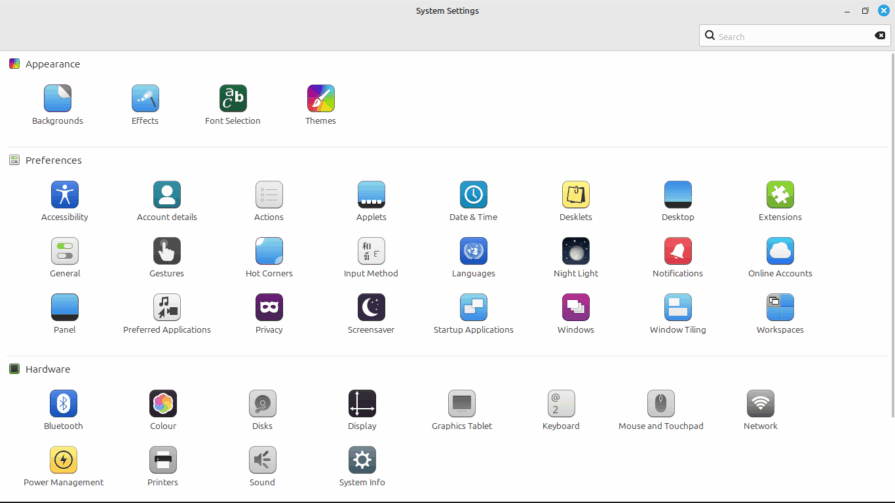
Backgrounds – personalise your desktop wallpaper choice.
Font Selection – Changing the font scaling in Fonts is the best way to make text more readable on your display.
Actions– This allows selection of useful tools to the system. e.g Compress PDF, Create shortcut on Desktop. View and download the options in the Download tab then use the Manage tab.
Applets – similar to Actions above, this adds widgets to the right hand side of the Panel (= taskbar).
Desklets – similar to Actions above, this adds widgets to the desktop, e.g. Calendar, Clock Weather.
Extensions -similar to Actions above, this adds configuration options to the way the desktop works e.g. Transparent Panel, Wobbly Windows.
Languages – Check these settings e.g. language = English UK, Region for numbers, currency.
Online Accounts – Add your Google/Gmail or Microsoft account to the computer here. Avoids the need to keep logging in especially with different browsers. To configure this initially you will need to log in via a browser.
Panel. – = taskbar. Change the way the Panel works here.
Preferred Applications – Change the default applications e.g. browser, video player here.
Keyboard – Add or change keyboard layouts here
Some Tips
When an app is running, right-click on the icon gives the option to Pin the Icon to the Panel for future convenience.
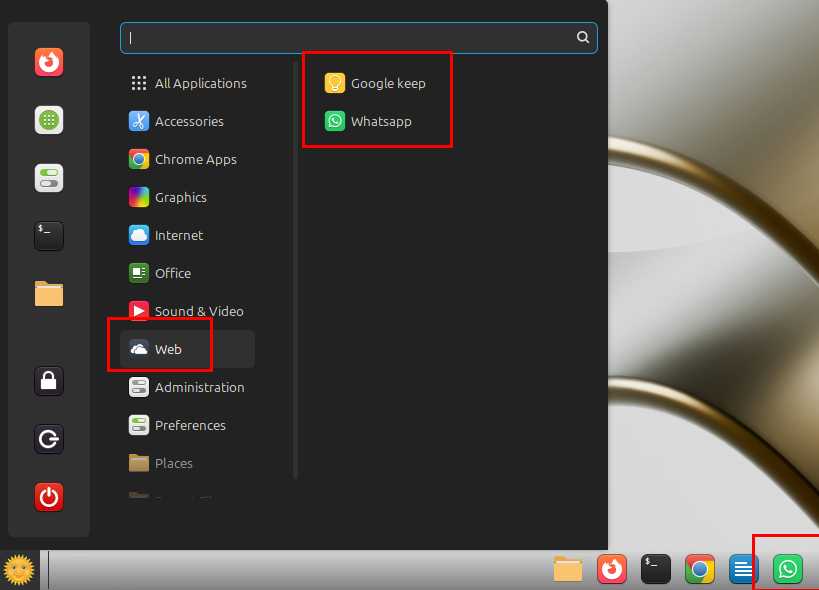
Web Apps. Internet > WebApps. Rather than using the browser window, WebApps enables the user to run online services in their own window so that they work in the same way as installed programs. For example, WhatsApp, Gmail, 365 Word, Photo editing services etc.
Linux Mint comes with a more restricted set of text fonts than Microsoft Windows. There are various ways to install the full set of Microsoft fonts including Arial for example. Google ms-fonts or ask Peter Bayliss for help.
Try out Hipnotix for TV.
If you see a reference to Gnome, this is the name of the file manager program. Note that highlighting a file in Gnome then press the spacebar, a popup will display a preview of the file content for most file types.
Have fun with Linux Mint !
Our helpers are available on Mondays
There is a WhatsApp chat group and our Special Interest Group page is here.