
Mini PCs are those tiny, boxy PCs which are no larger than the palm of your hand. They are both powerful and portable. Some are surprisingly cheap and pre-loaded with Windows 11. Others are tiny Apple Macs. On Thursday 22nd May we looked at these machines, highlighting what you need to know before making a purchase.
- They are replacements for desktops, not laptops.
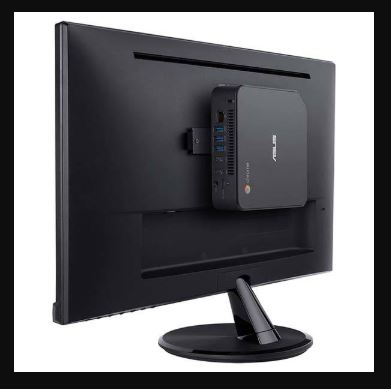
A Laptop is a self-contained portable device with integrated screen, keyboard, mouse, battery, speakers, microphone and camera. A Mini PC has none of these features, though they usually have inbuilt WiFi, Bluetooth and numerous connection ports. - They come with a VESA mount. Most monitors have four screw holes arranged in a square on the back. These are for a frame used to hang the mini PC out of sight on the back of the monitor.
- If you are thinking of using your old desktop monitor, make sure it has the correct type of video connector. Many older monitors have a VGA connector (also) know as Dsub or RGB which looks like this:
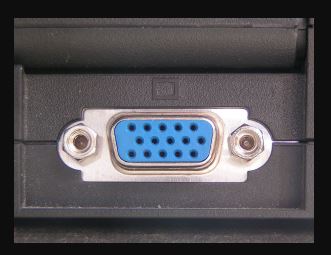
This is an analogue connector (remember those analogue TVs where the picture when fuzzy when the weather was bad? These were replaced by digital TVs which either have a perfect picture or none at all. ) You may find a VGA port on some old models of Mini PC, however the current standards are HDMI (High-Definition Multimedia Interface – which a digital standard designed for TVs which carries both video and audio signals) and DisplayPort (which is very high resolution (up to 8k) , high performance standard designed for PC monitors, and multiple display set-ups). They look like this:
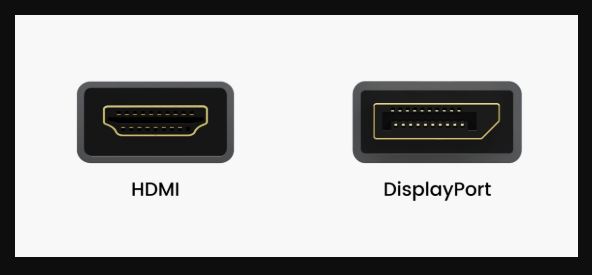
Although there are adapters to convert HDMI and DisplayPort to VGA – they may not work very well and display a low resolution.
4. Check the ports for connecting other devices: There are a number of USB ports, including fast USB 3.0 with blue sockets. These are suitable for external drives. Devices such as keyboard, mouse, speakers, microphone and camera need to be connected via USB or Bluetooth. Other ports to look for are are audio, power, Ethernet (wired networking) and USB C (depending on the version this can be used to connect a monitor)
5. Check the storage and RAM capacity: Mini PC hard drives are mini solid state drives (There are two main types, mSATA and NVMe). The smallest are 128 GB, though drives of several Terabytes are available. Installed RAM on the cheapest models can be as low as 4GB.
6. Check the Processor (computer chip) model: Mini PCs use low power mobile processors, i.e. those designed for laptops. These don’t need cooling fans and adjust their power consumption based on what work they are doing. They can have several “cores” which are separate processing units (brains if you like) capable of tackling different tasks simultaneously. The ideal number of cores depends on typical tasks. For most users, a 4-6 core processor is fine. The graphics is also handled by the processor and determines the number of monitors which can be managed by the PC.
Both Intel and AMD produce a range of energy efficient processors
7. Check the Operating system: Many cheap models are “left over” older technology with Windows 10 which cannot be upgraded to Windows 11. If you’re looking for a Windows Mini PC, make sure it is loaded with legitimate Windows 11. On first boot-up, the system guides you through the final stages of the Windows installation in which you choose the preferred language, location and keyboard layout, username and password etc.
8. There are many models to choose from with a wide price range depending on the specification. This article (in Spanish) gives a run-down on some cheap mini PCs available in Spain for less than €200 in May 2025. Estos son los mini PCs por menos de 200 € que te recomendamos como expertos en tecnología . One model pre-loaded with Windows 11 was priced less than €100, though it has a single core processor and small capacity storage and RAM. Still for €99, what do you expect?
Chris Betterton-Jones – Knowledge junkie