
On Thursay 26th June Peter Bayliss demonstrated the FreeFileSync backup program and some helpful utilities in the Microsoft Power Toys toolbox.
FreeFileSync
This program It is available on Windows, Linux and macOS. FreeFileSync can be downloaded from https://freefilesync.org/ and is available free of charge for personal use. Users are requested to make a voluntary donation to the project.
In addition to supporting local file systems and network shares, FreeFileSync is able to sync to Google Drive, FTP, FTPS, SFTP and MTP devices.
The program can be quickly configured to perform a file comparison or a fast backup from a computer to an external hard drive for example .
If you need help with installing and setting up FreeeFileSync, contact the Helpers at JCC
Configuration
the way the program works is you have folders on the left e.g. your computer and folders on the right e.g your backup drive and you can synchronize the files on the left to match the files on the right
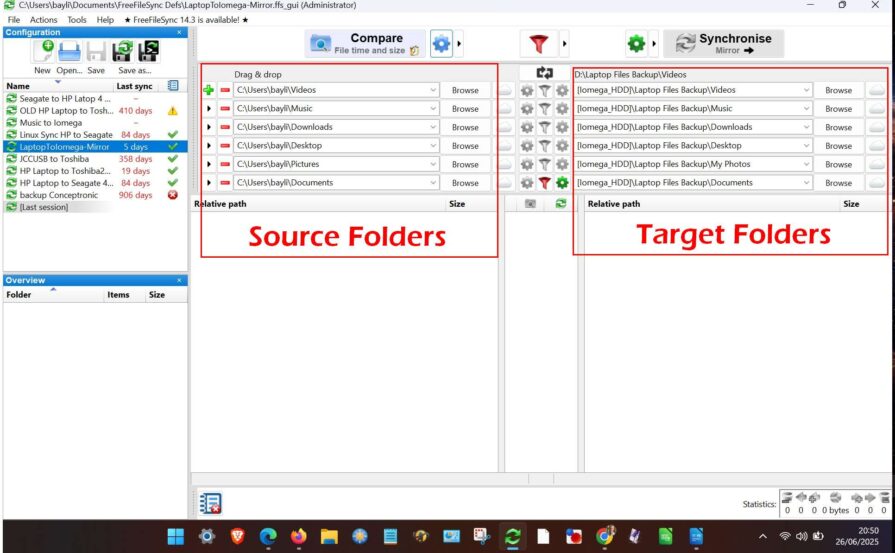
Settings
Compare
- file time and size – simplest option
- file content -use with care
Synchronization
- two-way. if you modify a file on the left you will get copied to the right if you modify a file on the right it will get copied to the left. Use with care. If you modify he same file on both sides it can create a conflicts
- mirror – updates the files on the right to be exactly the same as the files on the left. Most straightforward option for backup
- update copies and updates from left to right, but does not delete any files on the right. Reduces the risk of accidentally deleting all copies of a file but may result in the retention of a large number of unwanted files.
File deletion
- recycling bin moves files to be deleted to your recycling bin, if available. Not really necessary
- permanent means if you delete a file on the left and a previous backup has the file on the right that file will be completely gone once you back it up
- Versioning When a file on the left is updated, this file is copied to the right, and the previous version on the right is saved in a versioning folder. This can be useful if you might want to go back to a version of the file at some time in the past, rather than losing that option because the file has been overwritten by a subsequent backup.
Filter
there are various options to ignore files from the comparison for syncing, from temporary folders or by file name or type or for individual files.
FreeFileSync is also a powerful tool for identifying and rationalising extra copies of files in different folders e.g. duplicate photos in Documents folder or overlapping backups.
Microsoft Power Toys
Microsoft Power Toys is a suite of tools similar to the Snipping Tool that have not (yet) made it into the Windows operating system. When Microsoft Power Toys is installed it adds extra right click options to File Explorer and provides extra tools that are activated by keyboard shortcuts.
The list of tools in Power Toys can be found in the link below. Investigate the ones you might find useful !