
On Thursday, August 14, Chris and Peter demonstrated Linux Mint 22.1 and the “Cinnamon” desktop. This version of Linux is easy for newcomers to use because it has an interface similar to early versions of Windows. It is free, no subscription is required, and users are not badgered into buying anything or signing up for additional services. Chris started by booting her Linux laptop and pointing out that once it was connected to the WiFi, it immediately found the Club’s network printer.
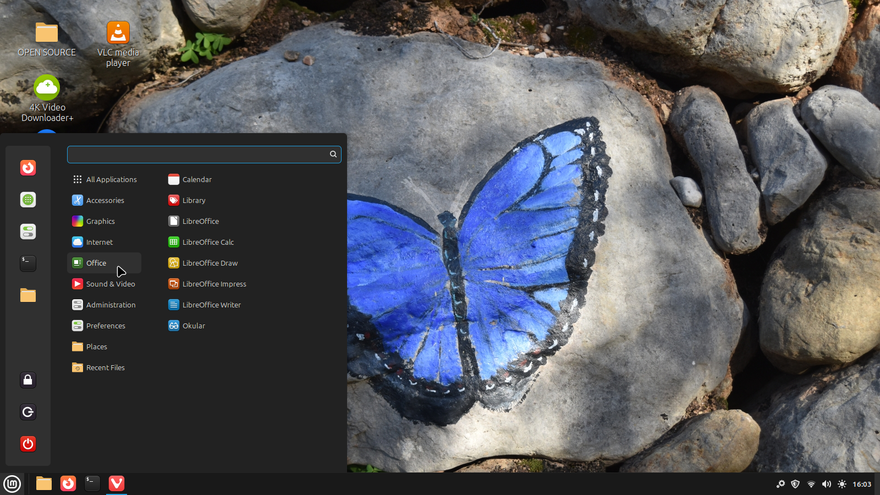
She then showed the Start menu structure, which is simple and logical. It consists of a Start button in the bottom left corner. Click on it and the menu appears. A column above the Start button contains links to frequently used and favourite apps. To the right of this is a menu of application categories and “Places” ( Folders containing user content such as documents, pictures and music). Hovering the mouse over a category displays a submenu. In this case, the mouse is over the “Office” category, which includes all office-related apps, one of which is LibreOffice. LibreOffice in Linux is the same as it is in Windows, although text fonts used in Microsoft Office will have to be installed separately if you want to use them.
Chris then demonstrated what happens when you open a browser window. Since she had set up the laptop to start up without a password, she had to enter one to use the browser. This is to protect unauthorised use, since browsers often store email account passwords, etc. The browser installed with Mint is Firefox, but you can install others, such as Google Chrome if you like.
She showed that once you are working in a browser window, it is exactly the same as working in the same browser on a Windows PC. Once you have logged in to a Google account, everything associated with that account is at your fingertips as usual.
She then demonstrated how to install programs using Software Manager (a password is necessary). Many of these programs are Open Source, and most are free.( See: https://javeacomputerclub.com/2025/06/21/some-free-open-source-apps-to-try-they-work-with-windows-macos-and-linux-and-they-wont-track-you/ ) . Some Windows and Mac programs such as Adobe Photoshop cannot run under Linux, but there are equivalents for most tasks, e.g. Gimp (Gnu Image Manipulation Program) is a powerful image editor. If this is too complicated, try a simpler editor such as PIX. Peter explained that FlatPak is a curated collection of applications. These can also be installed through Software Manager.
We played with the file viewer, Okular, which can read many different types of file, from e-books, to images and PDF files. It also let you annotate them. We looked at FreeTube, which enables users to watch YouTube videos without sending information to Google, or displaying advertisements.
We then looked at how to do updates. A user can choose what updates to install and when. The update list includes those for the Linux system, as well as updates to all the installed apps. Again, a password is required to authorise the updates. Linux does not use anti-virus programs. It is structurally more resistant to virus attack than Windows because of the way it is coded and critical tasks have to be authorised by the user through a password.
When you plug a thumb drive into a USB slot, an icon of the drive appears on the desktop. You can open and eject the drive from this desktop icon, which disappears once the drive has been ejected. This is a simple and intuitive way of managing external drives.
Peter then demonstrated how users can configure and personalise the desktop, menu, and taskbar. The latter is called a “Panel” in Linux. He also discussed how to install Microsoft Office text fonts and showed us tips and tricks from this informative YouTube video, and taught Chris a thing or two!
Christine Betterton-Jones – Knowledge Junkie