
If Google has suddenly complained that you have almost filled your storage, and soon you won’t be able to send or receive e-mails, and it’s nagging you to upgrade (and pay a subscription) for more space. Fear not, there are ways of clearing out the junk so that you can continue with the free plan.
Google provides 15 GB of free storage space “in the cloud” for each personal Google Account. This space is shared across three primary services: Google Drive (files, PDFs, documents); Gmail (emails and attachments) and Google Photos (photos and videos). One common culprit for Google storage getting overfull is photos and videos which have been taken on your phone, and uploaded without you realising.
>>Firstly, check if your Android phone is automatically backing up photos to Google Photos.
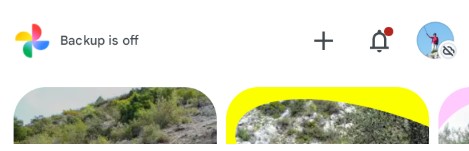
Tap on the Google Photos app. At the top of the screen you will see your account profile picture on the right, and on the left a message saying whether Photos Backup is on or off. If it is on, then all the photos taken with the phone are being uploaded automatically..even the rubbish ones. To save storage space in your account with Google, turn this setting off by tapping on the message. You can continue to backup your photos manually.
>>Secondly, find out exactly what is filling up your Google storage
The easiest way to do this is to use the Google 1 app on your personal desktop or laptop. Open your browser and go to the Google search home page.https://www.google.com . Top right you will see your profile picture next to an icon consisting of nine dots in a square. Click on this icon to open the App menu.

Scroll down until you see the Google 1 icon. Tap on it to open “Storage and more with Google One“

Google will then show you a breakdown of how your storage is being used and provide options for managing and deleting stuff which is taking up space, such as videos and large e-mail attachments.
>> An alternative way to manage large e-mail attachments is to do this through your Gmail account viewed in a browser in your PC https://mail.google.com At the top of the window you will see this Search box:

Click on the three horizontal lines icon to the right of the search box to open the Search Options dialog box. You can then specify which e-mails to look for. e.g. all those with attachments larger than 2 MB.
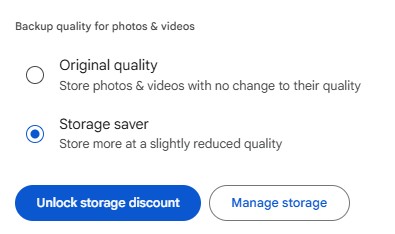
>> If photos are taking up a lot of space, make sure that Storage Saver is active. New smartphones have high resolution cameras and sensors containing lots of megapixels. These create large image files consuming a lot of storage space. Google’s Storage Saver reduces the photo resolution to 16 megapixels, thus saving space. You wouldn’t notice the difference in quality when viewing the photo on a screen.
Go to Google Photos in the browser on your PC. Click on Settings (the cog wheel icon, top right) and make sure that Storage Saver has been selected. Then click on Manage Storage
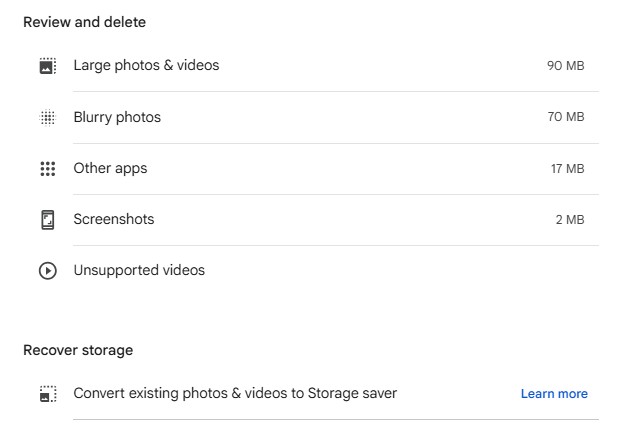
>>Then, the following Review and Delete menu appears. This enables you to select and delete blurry photos, large videos and pictures you uploaded from WhatsApp. You can also compress over-large photos by clicking on Convert existing Photos & videos to Storage Saver. This process may take some time. So be patient!
>> If you still have too much stuff in your Google storage, think about creating more Gmail accounts to get more free space. You can open up to four Gmail accounts under one phone number, each with 15GB storage and its own gmail address.
Christine Betterton-Jones – Knowledge Junkie