
JCC Members often ask how to get photos which are on their phones onto their PCs. Some want to save storage space, others to back them up to external drives and others to organise and manage the photos on their PCs. There are several methods, but which one is best for you? We discussed some options on Thursday 16 April.
Wireless Apps
Microsoft recommends you to use Microsoft Phone Link to connect your Windows PC to your Android phone or iPhone: https://www.microsoft.com/en-us/windows/sync-across-your-devices But this App is overkill for many users since as well as providing a link for downloading files it also syncs your phone with your PC, enabling users to make and take calls. reply to texts, and check and dismiss notifications from their PCs. In addition many downsides have been reported: “it commonly suffers from unreliable Bluetooth/Wi-Fi connectivity, frequent disconnections, high battery drain, and limited functionality for iOS compared to Android. Key downsides include intrusive permission requests, restricted file transfers, and reduced notification support in recent Android 15 updates.” (Gemini) The maximum number of photos which can be managed and downloaded is 2000.
Peter found that this app was so intrusive that he uninstalled it from Windows.
If you have a Mac you can use AirDrop (wireless), Photos app (USB cable), or Image Capture (for large transfers). For automated syncing, enable iCloud Photos on both devices. For manual, cable-based transfers, connect the devices, unlock the iPhone, and use the Photos app on Mac to import.
Peter demonstrated a simple, free, cross platform app called Localsend: https://localsend.org . This is available for Windows, macOS, Linux, Android, and iOS. It uses your local wireless network, so it is secure and doesn’t go via the Internet, and is very fast. End-to-end encryption ensures that only you and the recipient can access your files. Just download LocalSend on all your devices and ensure that they are connected to the same Wireless network. The app creates nick-names for your devices and has a simple interface:
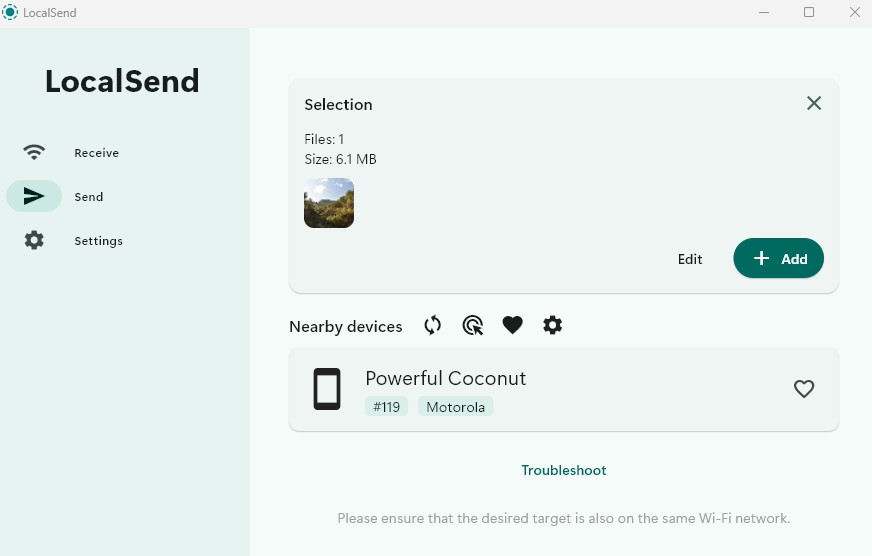
An app which Chris demonstrated a few months previously is KDE Connect: https://kdeconnect.kde.org which is a lot like Microsoft Phone Link. Note that such wireless apps may encounter connection problems due to device firewalls and security settings.
One member mentioned that she sent photos to her phone by sending them as email attachments. This will work for individual small files, but is not suitable for bulk transfers.
Using a cable
Chris demonstrated using a USB cable to connect a PC to an Android phone. Upon connecting, a popup on the phone will ask if you want to use the connection for charging or file transfer. Select File Transfer. Windows 11 will ask if you want to import photos using Windows Photos. If you say no, the files on your phone will still be visible on the PC in Windows Explorer. Thereafter, you can view and copy the files on the phone’s storage as if they were on a PC’s external drive.
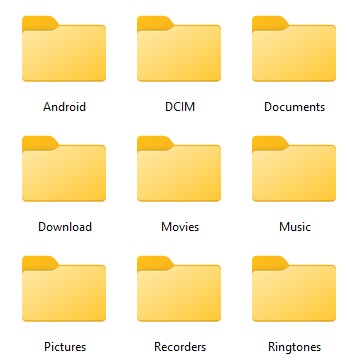
The DCIM folder contains images taken by the phone’s camera. Pictures includes WhatsApp images and screen-shots. Movies includes WhatsApp videos
A member demonstrated the ClickFree device: https://www.clickfree.com “Preserve all your memories with one touch
Simply insert and all photos and videos backup automatically” – This specialist thumb drive has connectors for Mac and Ios as well as Android and PC and comes with an app which seems to be needed both for back ups and to view the backed up files.
Editing Photos
We then talked a bit about which programs members use to edit their photos. One mentioned Irfan View https://www.irfanview.com, another the open source app, Faststone: https://www.faststone.org “FastStone Image Viewer 8.3 Free for personal use 2025-12-01 An image browser, converter and editor that supports all major graphic formats including BMP, JPEG, HEIC, WEBP, GIF, PNG, PCX, PSD, TIFF, WMF, ICO, TGA and camera raw files. It includes viewing, management, comparison, red-eye removal, emailing, resizing, cropping, color adjustments, musical slideshow and more.” Both these apps are for Windows Only.
Another member said they use Windows Photos. This has a strange, minimalist menu, but has useful adjustment and editing tools once you get to know your way around the app. Avoid AI options unless you are happy to log in with your Microsoft or Google account. A Mac and iPad have a similar Photos app.
Ask Gemini for information about more, free to use, image editing apps, and remember there are online image editing services such as Pixlr, which we demonstrated a while back! https://javeacomputerclub.com/2024/03/23/playing-around-with-pixlr-a-free-image-editor-with-ai/
Christine Betterton-Jones – Knowledge Junkie